User Management
This page covers creating and managing users in the Admin UI.
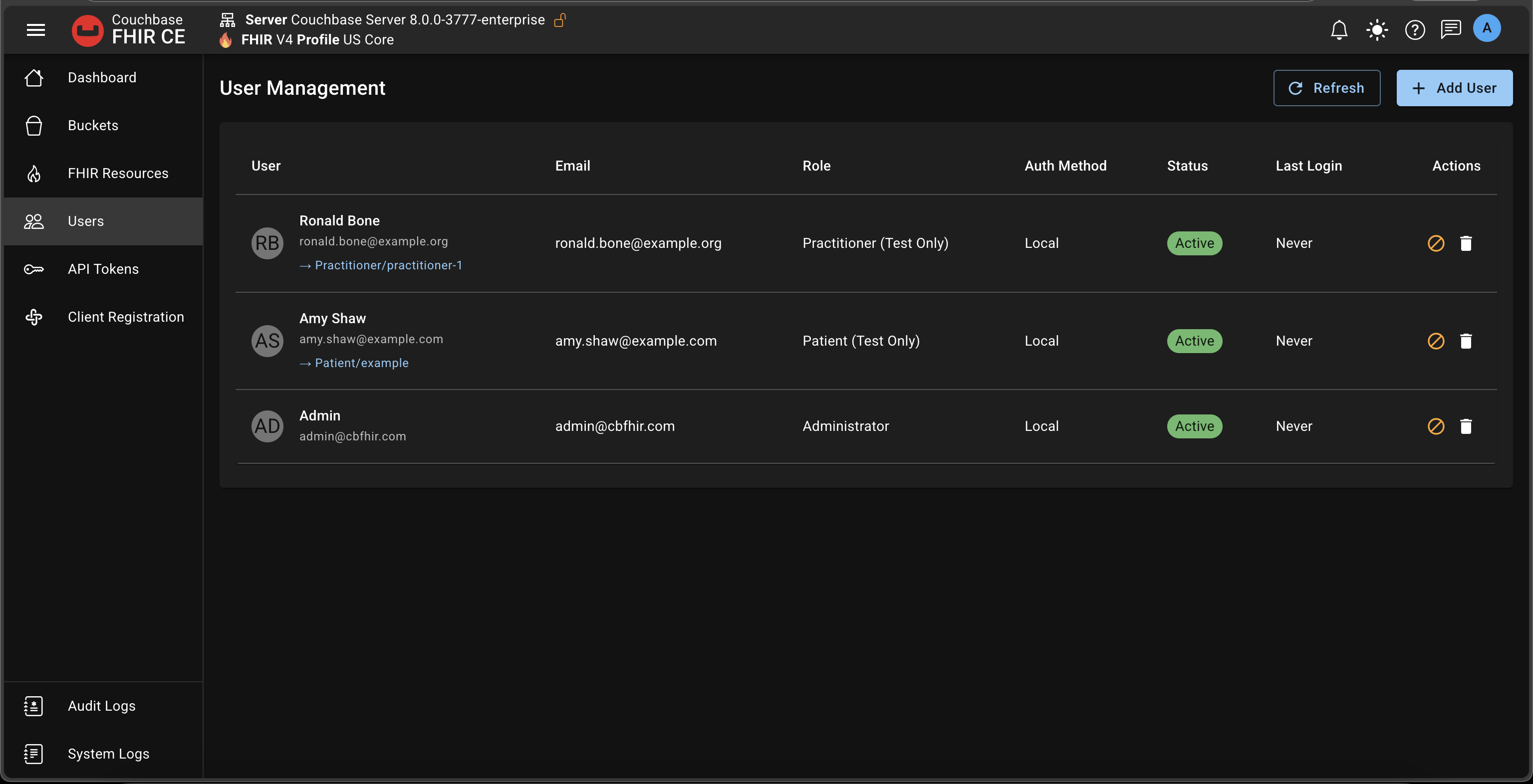
Initial State
On first initialization, a single Admin user is created. If you load the US Core sample data, two additional test users are added (Patient and Practitioner). These cannot log into the Admin UI and exist only for SMART app testing.
Add a User
Add a new user (e.g., John Doe) with the Developer role.
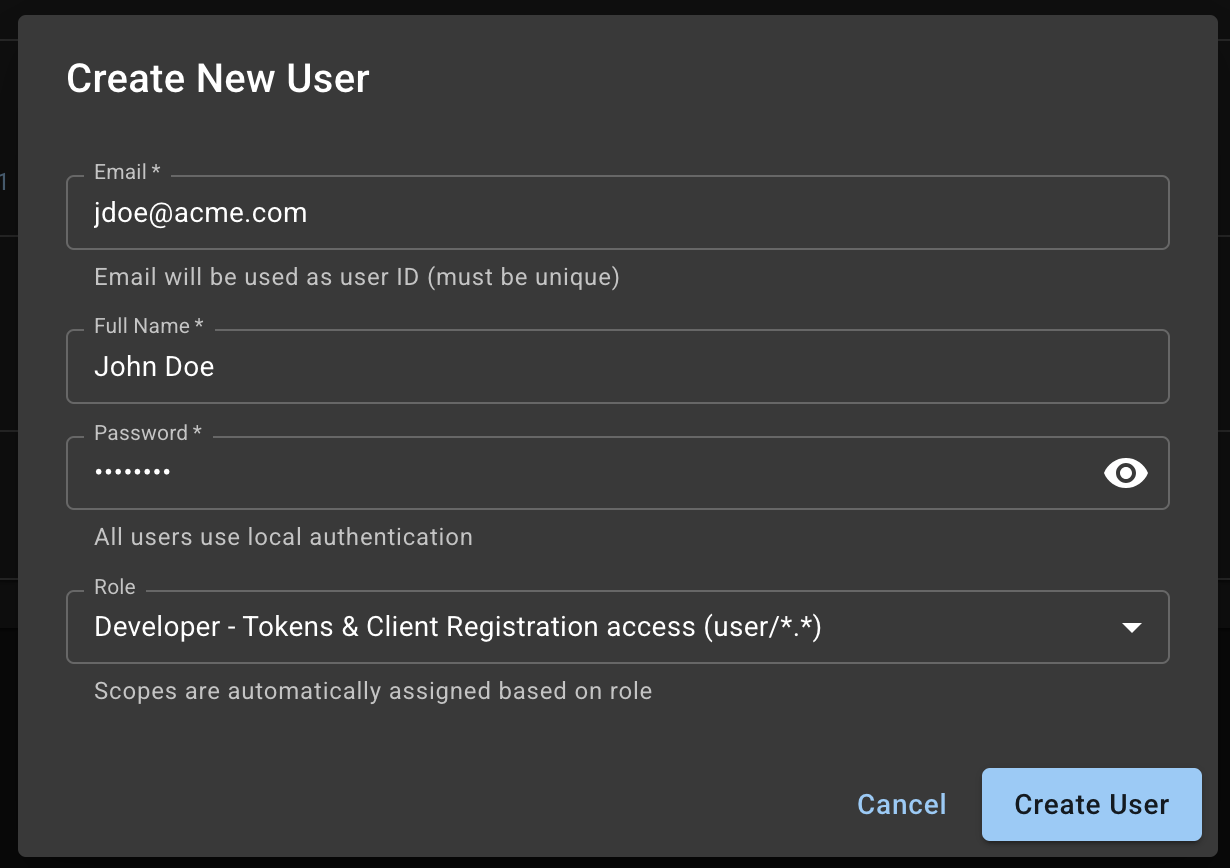
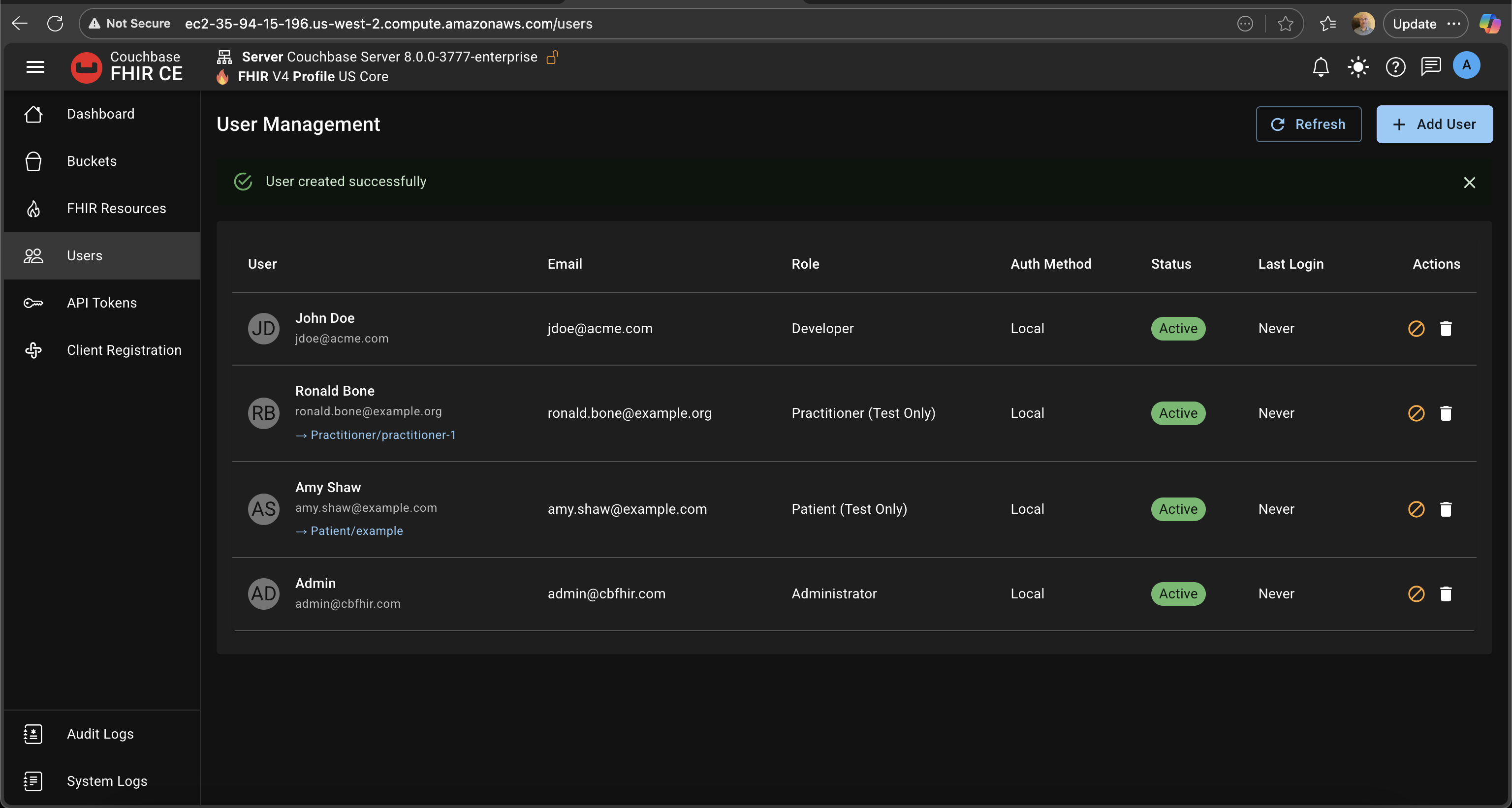
After saving, the user appears in the list.
tip
Admins can see all users.
Log In as the New User
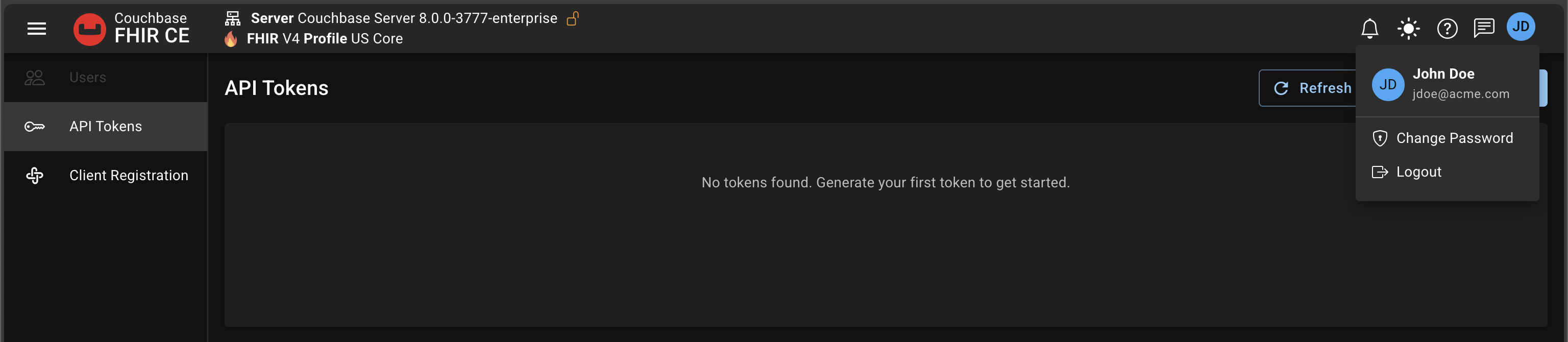
Log in as the newly created user.
tip
Developers only see “API Tokens” and “Client Registration”. They are automatically redirected to the Tokens page after login.
Roles & Access
- Admin: Full access (Dashboard, Buckets, FHIR Resources, Users, Tokens, Client Registration, Logs)
- Developer: Limited access (Tokens, Client Registration)
- Patient/Practitioner: Test-only; no Admin UI access (HTTP 403 if attempted)
Scopes are assigned automatically based on role:
- Admin → user/. and system/.
- Developer → user/.
Common Actions
- Create user: Email + password + role (Admin/Developer)
- Edit user: Update name, email, or role
- Change password: From avatar → Change Password (for self); Admins can reset user passwords if supported
- Activate/Deactivate: Temporarily block access without deleting
Notes
- Roles imply scopes; users do not choose scopes in the UI.
- Passwords are stored securely (BCrypt). Initial credentials come from config during first run; afterward users are persisted in Couchbase.
- For tokens and client registration, see the Admin UI pages:
- Tokens: docs/Admin UI/Admin - Dashboard.mdx
- Client Registration: linked from the Navbar in Dashboard
- Validation modes and profiles: docs/Install Couchbase FHIR Server/Validation.md