FHIR Resources View
Let’s explore the Resources view. This is where you browse FHIR resource types, drill into individual resource IDs, and inspect documents with a JSON/FHIR tree viewer and version history.
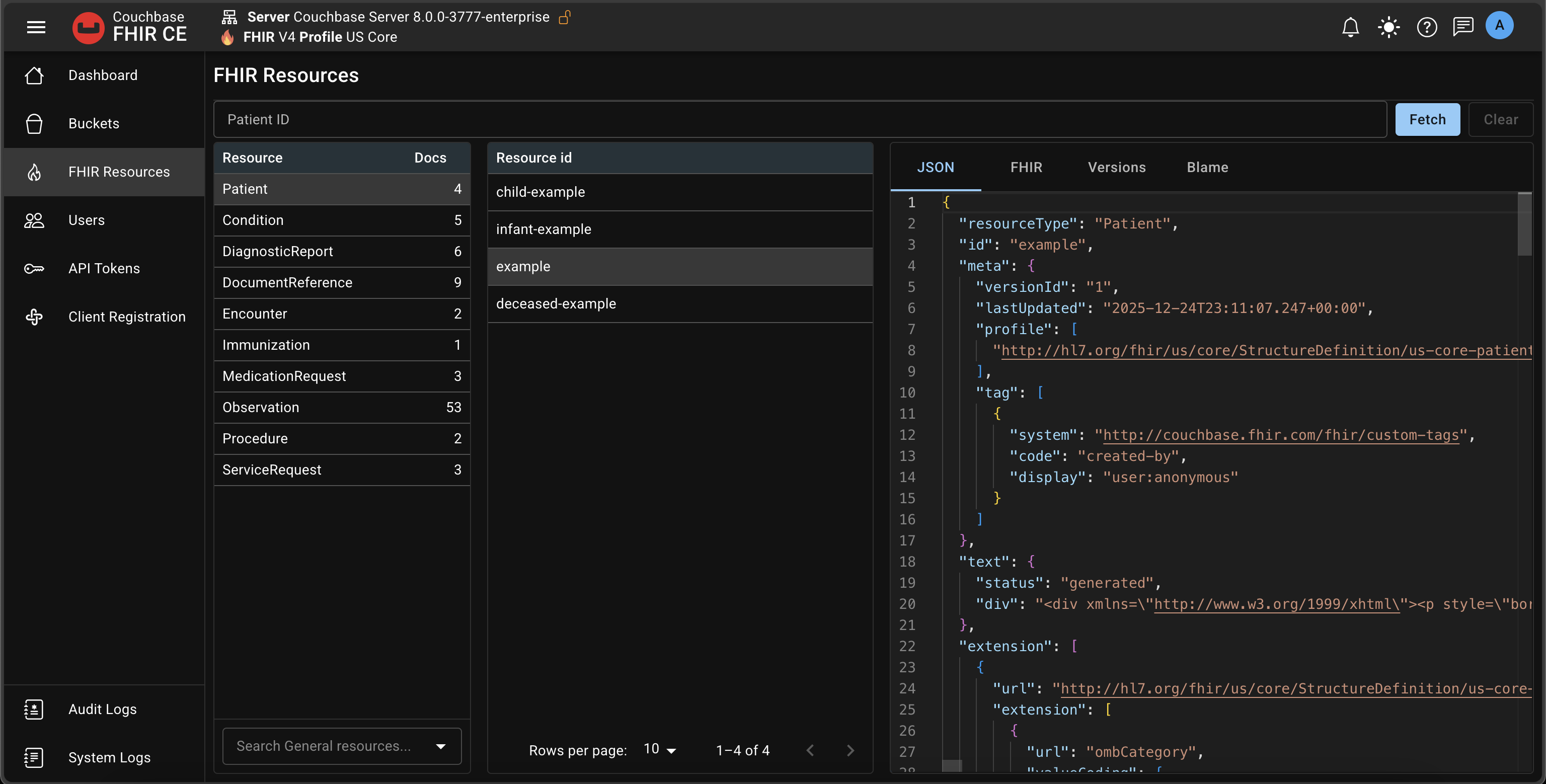
Resources table
The first table lists resource types and the number of documents per type.
The most frequently used resource types (top ~10) have dedicated collections. All other FHIR resources are stored in a single General collection. This preserves FHIR fidelity while avoiding an excessive number of collections.
When you select a resource type (for example, Patient), the second table lists the resource IDs for that type. The list is paginated and sorted by meta.lastUpdated.
Resource IDs and details
Select an ID to open the document details panel. You can switch between tabs:
- JSON: the raw JSON document stored in Couchbase
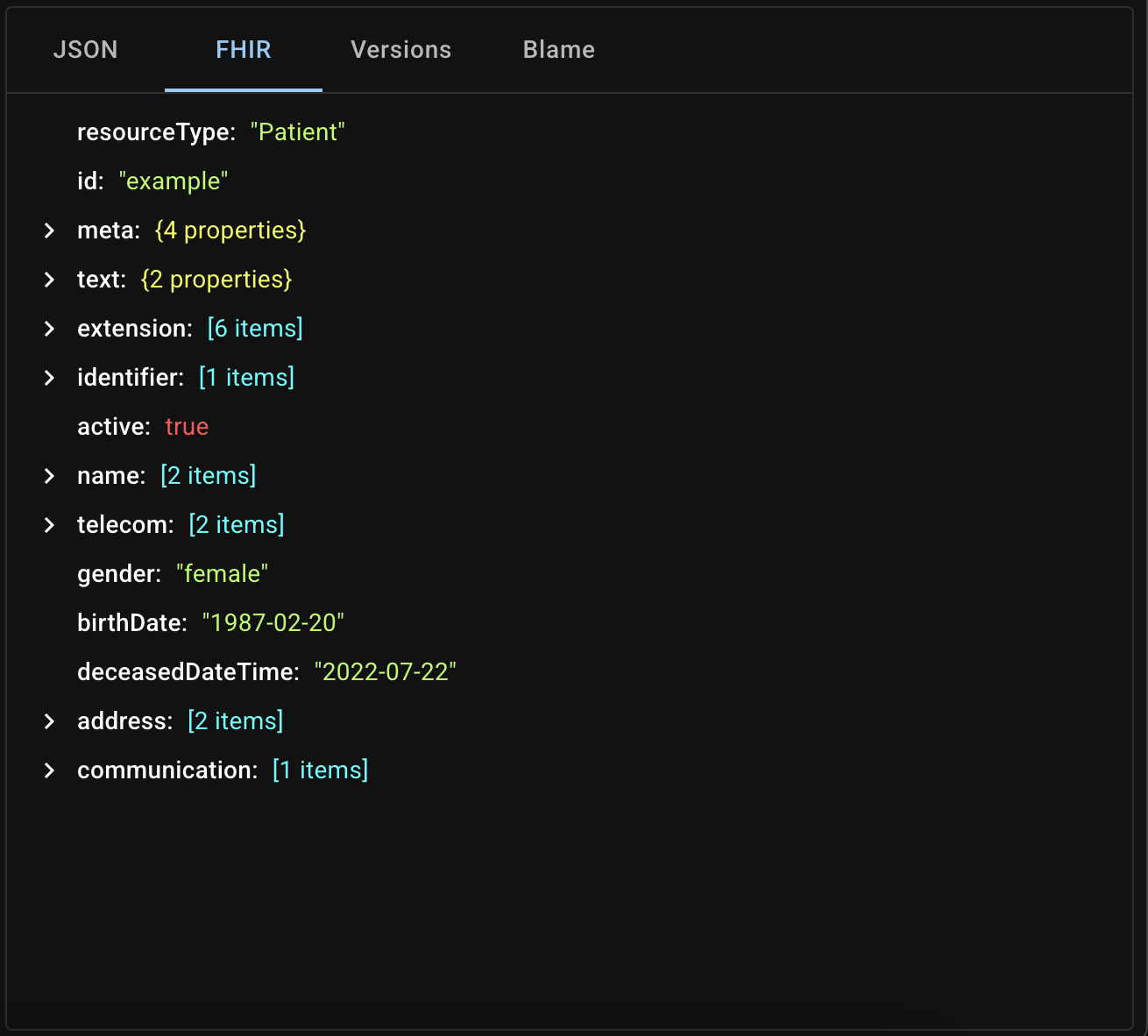
- FHIR: a tree view of the FHIR structure
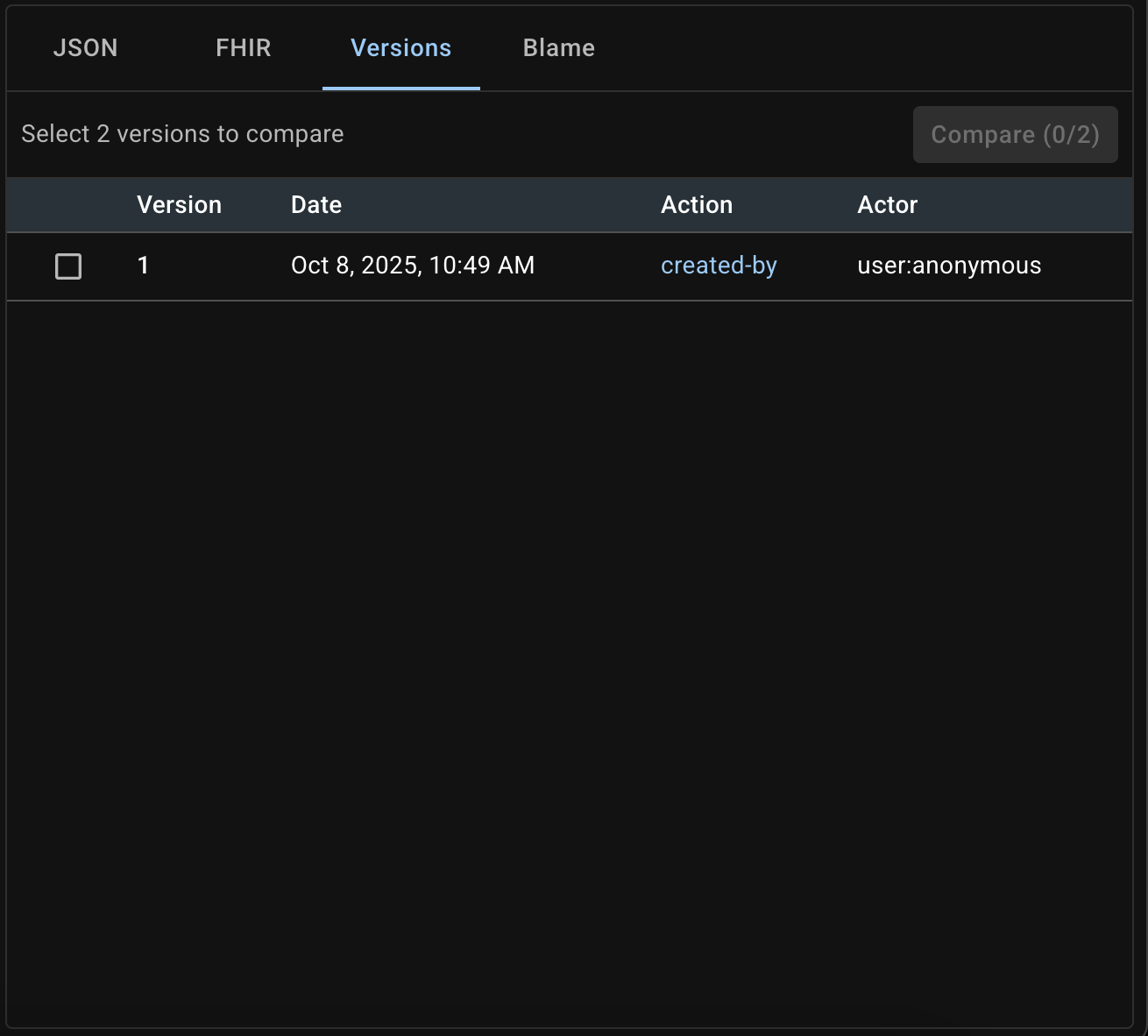
- Versions: full version history for the resource
- Blame: compare any two versions to see differences, GitHub-style
Exploring resources in the General collection
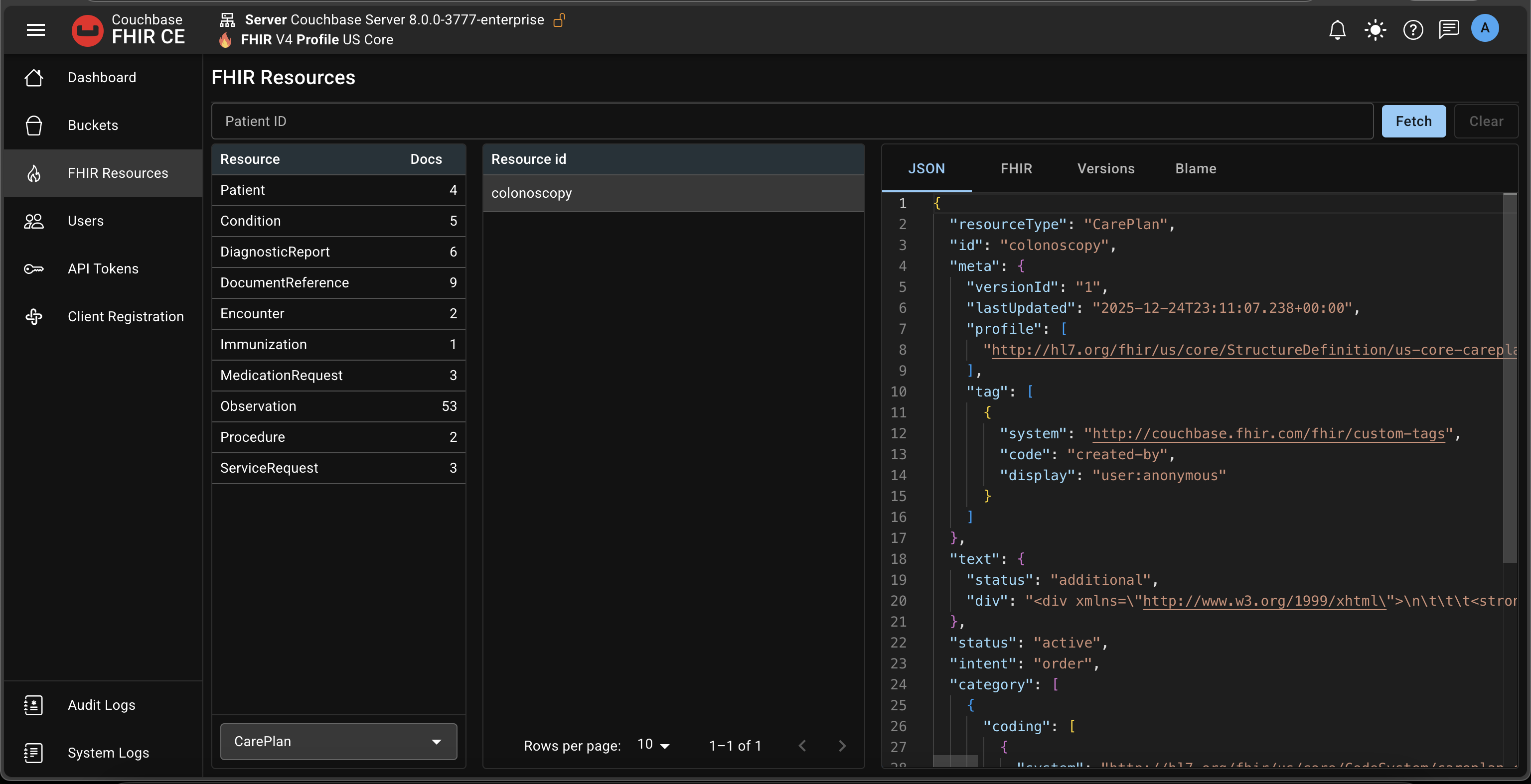
Not seeing the resource type you need in the top list? Use the resource type selector under the Resources table to browse any FHIR type stored in the General collection.
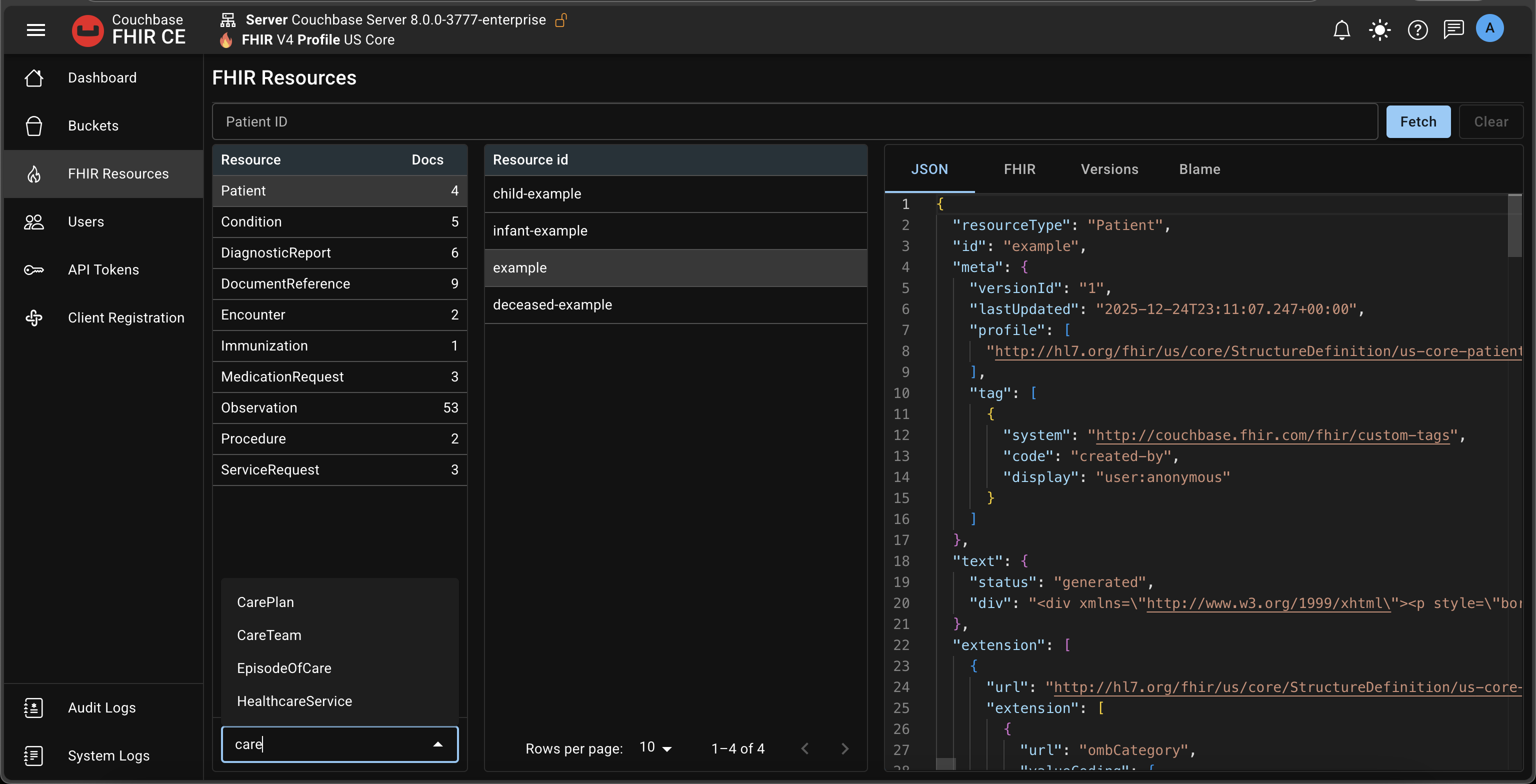
For example, choose CarePlan to list CarePlan resource IDs:
Patient filter
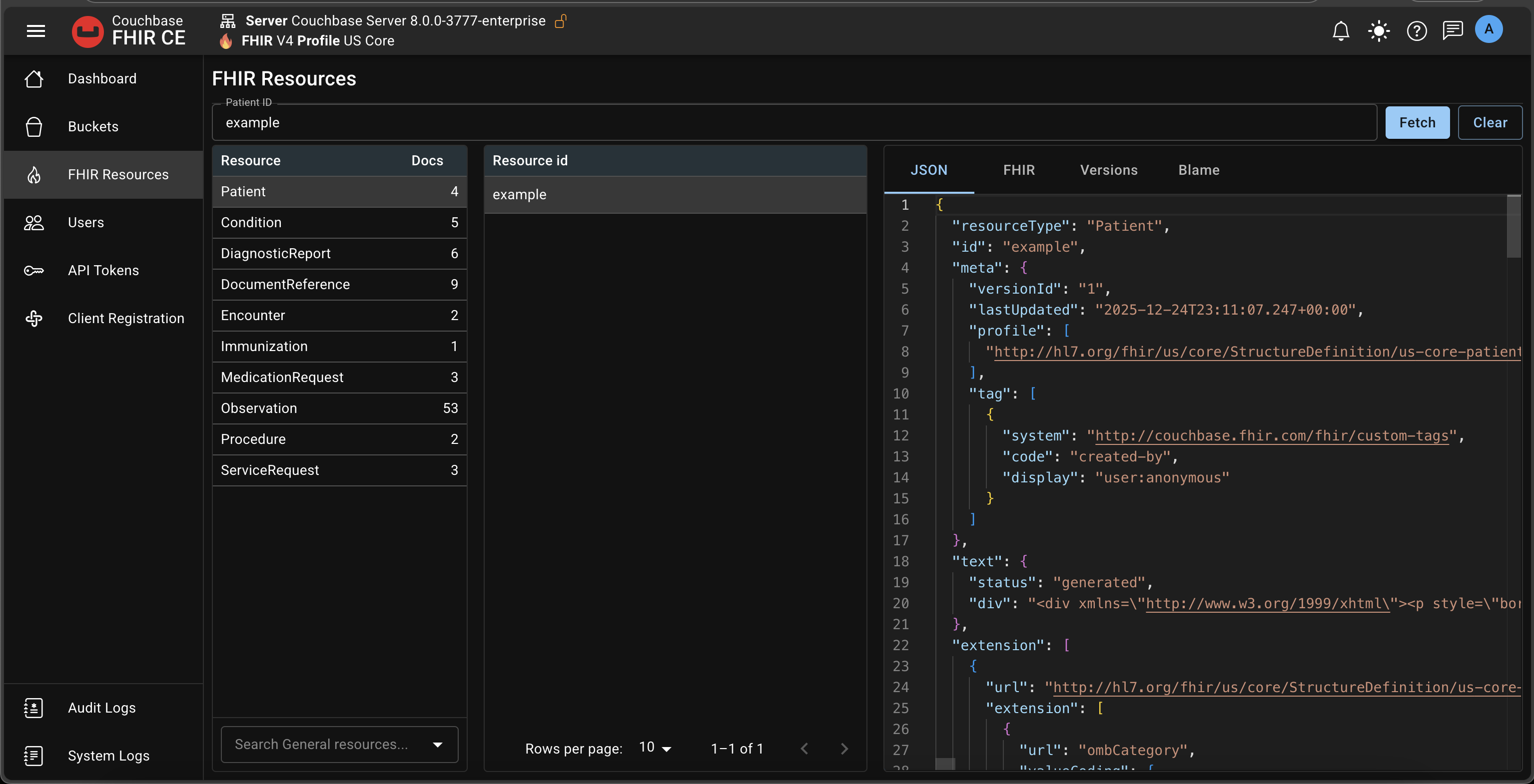
Use the Patient filter to quickly find all resources that reference a specific Patient.
Steps:
- Enter a Patient ID
- Click Fetch
- The Resource IDs table shows only resources that reference that Patient
When you switch to another resource type, the list shows IDs that reference the same Patient:
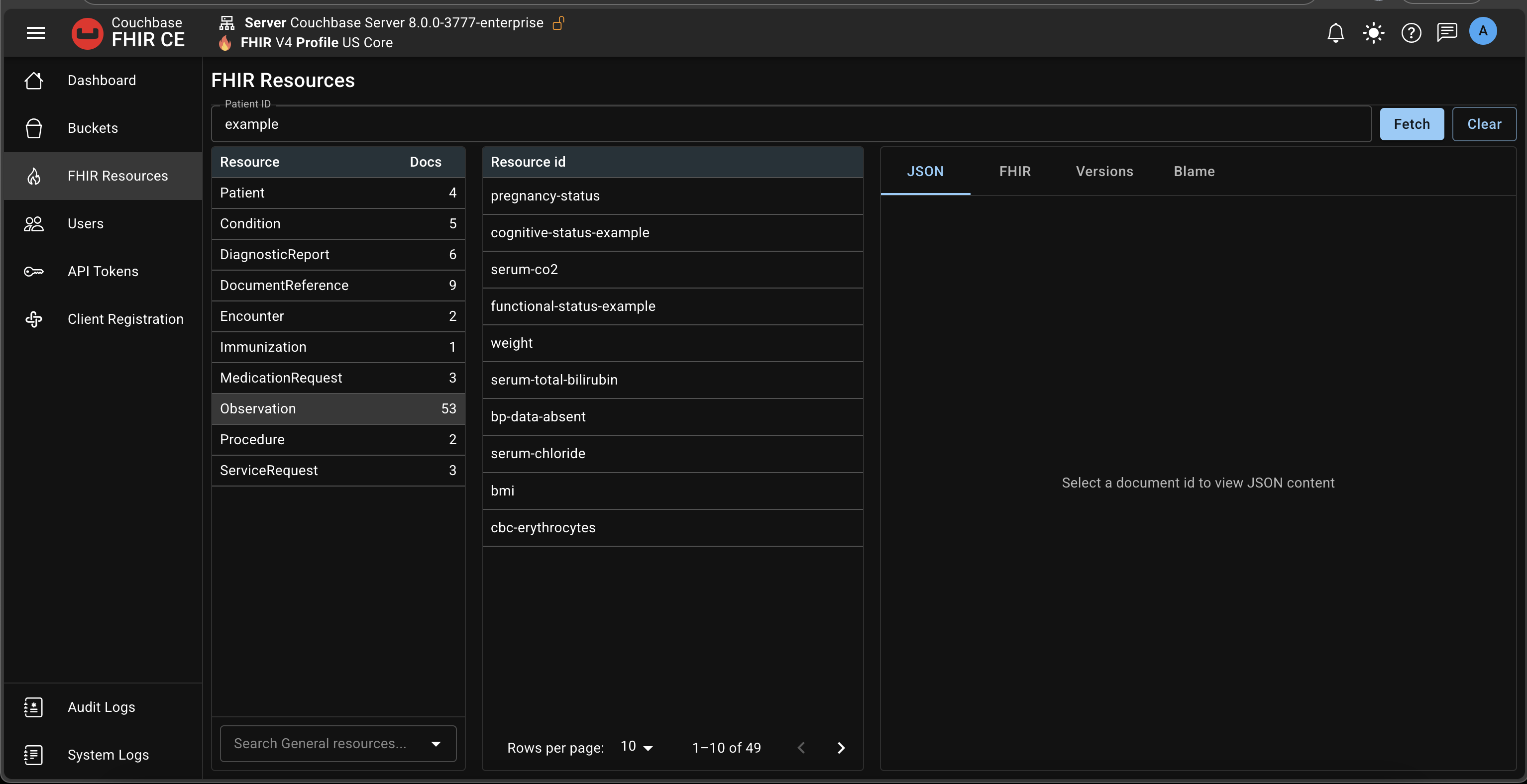
Click Clear to remove the Patient filter and return to the full dataset.
The document counts in the Resources table reflect total documents in the bucket. They don’t change when a Patient filter is applied; the filter only affects the Resource IDs table.